
Mastering React 19: Exploring the Latest Features of the New React Version


React 18 was a major milestone in the framework’s journey, primarily because of the introduction of an interruptible, cancelable, concurrent rendering engine. This feature improved UI rendering, improved the interactions with Server Side React (SSR), and paved the way for many new features to be built upon React’s shiny new innards.
React 19 fulfilled the promise set by React 18 by leveraging its interruptible and concurrent rendering engine to introduce Actions. These are a convention for handling Async data fetching within components. Building on the foundation of useTransition(), React 19 refines asynchronous interaction management and also introduces new hooks for Actions, form handling, and new features to React DOM’s <form> element.
Along with Actions, React 19 also introduced Server Components and Server Actions. This was a major milestone and an important improvement. It is a lot to cover in one article, though, so watch out for Part II that will explore Server Components and Server Actions in detail.
In this article, we’ll look at the major new features and functionality introduced in React 19. We’ll also discuss upgrading from React 18. With that, let’s dig in!
Table Of Contents
React 19 Actions
Let’s start with Actions, arguably the most significant update in React 19.
The React Blog defines Actions as follows:
By convention, functions that use async transitions are called 'Actions'.
An Action in React 19 is not in itself a hook or an API. Rather, it represents a convention for consolidating common code paths when handling async calls originating from within a component. React 19’s implementation of Actions improves the boilerplate code for handling pending states, optimistic updates, and error handling associated with async calls to a server.
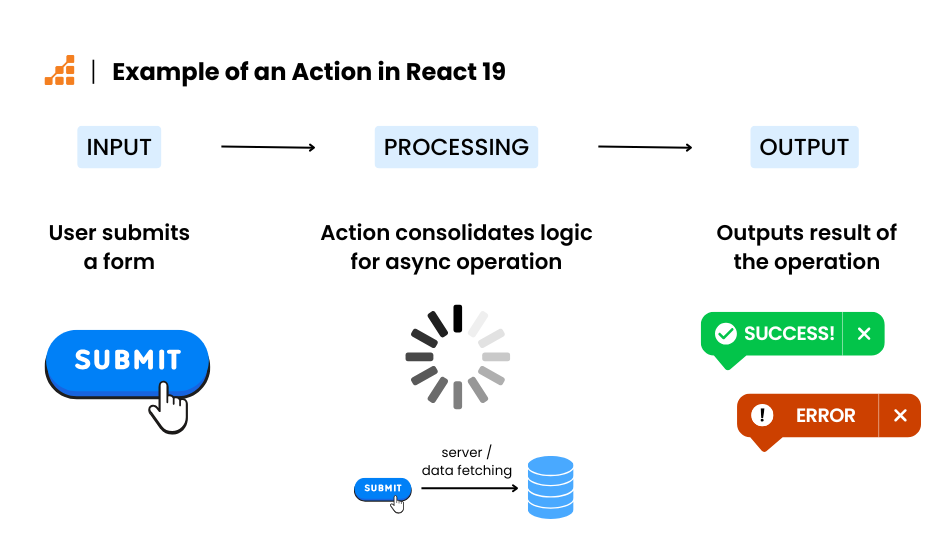
Asynchronous Operations in React 19
useTransition
In React 18, useTransition was limited to handling synchronous updates. Now, React’s useTransition supports async functions, meaning you can handle transitions that involve server communication or other async operations.
useOptimistic
Additionally, pending UI and error handling are improved with a new hook useOptimistic. This hook displays the “expected result” (or, optimistic updates) ahead of a round trip to the server, making the app feel faster and more responsive. useOptimistic also handles errors gracefully, by auto-magically reverting to the old value upon failure of the async call.
useActionState and useFormStatus
Along with useOptimistic,two more hooks were introduced: useActionState and useFormStatus.These new hooks work with React’s new <form> extensions and simplify form management. Both useActionState and useFormStatus depend on React DOM’s extensions of <form>, which allow the action={} and form elements’ formAction={} to accept an async action function returned from useActionState and useFormStatus.
All of these improvements shrink down our code, making it more readable when saving data with a call to a server.

New “Use” Hook
In my opinion, the use hook is one of the coolest new features in React 19. It allows for components to consume an async data resource via a promise and support for <Suspense> without needing a framework like Next.js or a module like ‘react-query’.
Base Code Example: Actions
Let’s start with a functional component that saves data to a server while managing the UI states and logic involved in an Action. We’ll optimize this example step by step in the following sections.
In the example below, users can view and edit their bio using a simple <textarea>. We use useState to track changes, manage the loading state during a server call, and handle errors if the save fails.
In many tutorials, examples work well for basic demos but can fall short when extending functionality for real-world scenarios. For this piece, I’ve chosen to explore a more practical example with the following considerations:
- The save button should be disabled when:
- The bio should load pre-existing data: Editing often starts with saved content rather than a blank slate.
This example is designed to reflect a more realistic use case, making it easier to build upon for real-world applications.
1 import { useState } from "react";2 import { saveBio } from "../Api";34 const Example1 = ({ currentBio, setCurrentBio }) => {5 const [bio, setBio] = useState(currentBio);6 const [pending, setPending] = useState(false);7 const [error, setError] = useState(null);8 const pristine = currentBio === bio;910 const onSave = async () => {11 setError(false);12 setPending(true);13 try {14 await saveBio(bio);15 setCurrentBio(bio);16 } catch (serverError) {17 setError(serverError.message);18 }19 setPending(false);20 };2122 return (23 <div className={"col"}>24 <h3>Current Bio:</h3>25 <p>{currentBio ? currentBio : <em>your bio is empty</em>}</p>26 <textarea27 onChange={(e) => {28 setBio(e.target.value);29 }}30 placeholder="Describe yourself in a few words"31 value={bio}32 />33 {error && <div className={"form-error"}>{error}</div>}34 <button onClick={onSave} disabled={pending || pristine}>35 {pending ? "saving" : pristine ? "saved" : "save"}36 </button>37 </div>38 );39 };40 export default Example1;41
The example is quite simple. We use react’s state to track the textarea value, the pending state, and the error state; pristine is simply a constant.
Renders by State: Pristine, Dirty, Pending, Error, Success
This simple example (and all of the examples further down) will render as follows, depending on the state of the component’s action:
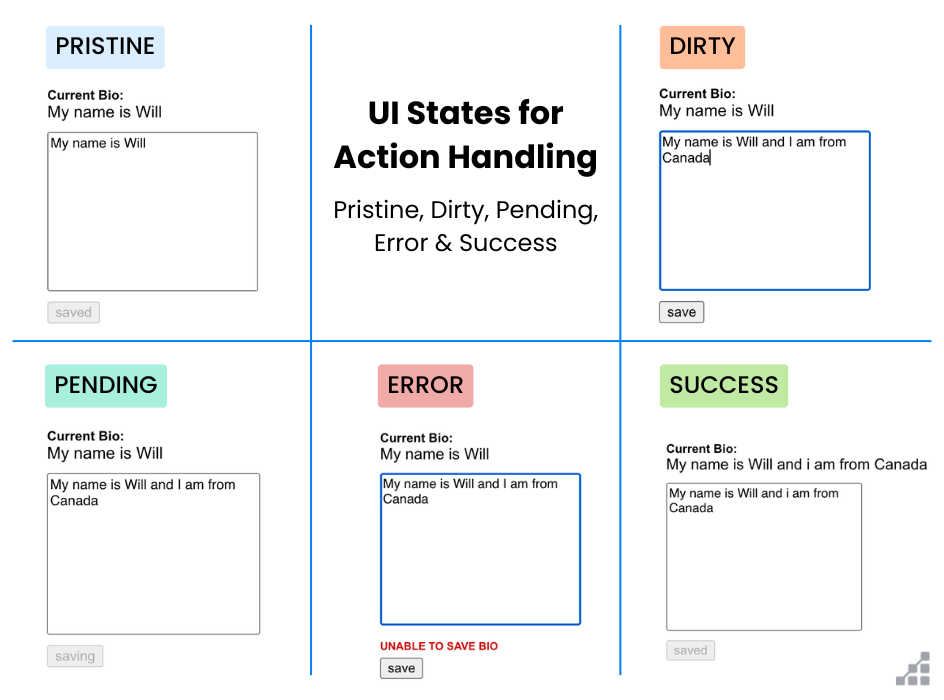
Async Functions in useTransition
Next, let’s make use of the hook useTransition and the ability of its function startTransition to accept an async function. This is a logical progression from the functionality of useTransition in React 18.
In the code below, the highlighted lines show where we’ve implemented the same component using useTransition:
1 import { useState, useTransition } from "react";2 import { saveBio } from "../Api";34 const Example2 = ({ currentBio, setCurrentBio }) => {5 const [bio, setBio] = useState(currentBio);6 const [error, setError] = useState(null);7 const [pending, startTransition] = useTransition();8 const pristine = currentBio === bio;910 const onSave = () => {11 startTransition(async () => {12 setError(false);13 try {14 await saveBio(bio, false);15 setCurrentBio(bio);16 } catch (serverError) {17 setError(serverError.message);18 }19 });20 };21 return (22 <div className={"col"}>23 <h3>Current Bio:</h3>24 <p>{currentBio ? currentBio : <em>your bio is empty</em>}</p>25 <textarea26 onChange={(e) => {27 setBio(e.target.value);28 }}29 placeholder="Describe yourself in a few words"30 value={bio}31 />32 {error && <div className={"form-error"}>{error}</div>}33 <button onClick={onSave} disabled={pending || pristine}>34 {pending ? "saving" : pristine ? "saved" : "save"}35 </button>36 </div>37 );38 };39 export default Example2;40
You’ll see that, on line 7, we replace a useState for the pending state of our request for the useTransition. Additionally, on line 10 + 11 you’ll note our onSave is now a regular function, which executes startTranstition (which has our original async function as its argument).
Key Takeaways: useTransition Hook
You might be thinking, “this certainly isn’t saving me any lines of code.” And you’re right. In my opinion, there’s also not a big improvement in code clarity, either.
The value of useTranstition, however, is that it allows our whole async code process to be encapsulated within a process which is optimized for React’s concurrent rendering engine. This means that waiting for a response won’t slow down the UI if an app needs to change state, update UI elements, or show animations while we handle the async call.
React 19 Hook: useOptimistic
The useOptimistic hook in React 19 is meant to keep an app’s UI feeling speedier and more responsive. It does so by allowing us to optimistically set the state of a value being submitted before receiving confirmation from the server. If the submission fails, the previous value is restored without requiring extra work…or what we like to call “automagically.”
I know, optimistic updating is nothing new. Many developers, the writer of this article included, have used optimistic updates for years because there are relatively few cases of connection issues that would throw an error in a simple case of editing a value.
While implementing an example, I was surprised to find that it wasn’t straightforward to handle this in an isolated component managing its own state without adding at least one more useState call. Initially, I hoped to rely solely on the form’s view state [bio, setBio], but no matter how I configured it, the displayed current value wouldn’t revert to its old value. Even worse, in some cases, the value of the <textarea> did revert upon a failed call, which is very bad UX!
The behavior I sought was this:
- The current value of bio should show an optimistic update value.
- It should revert back upon failure.
- The textarea should NOT revert back to the current value on failure to save, because then I have to type my changes all over again.
This was, in fact, the example that led me to set the state of the current bio outside of the components and have them passed down as props, which all of the examples do now. It makes a lot of sense for useOptimistic to work within this context, because that would be the bare-minimum real-world implementation, and more likely that there would be a variety of implementations using state management tools (redux being the most widely used).
1 import { useOptimistic, useState, useTransition } from "react";2 import { saveBio } from "../Api";34 const Example3 = ({ currentBio, setCurrentBio }) => {5 const [bio, setBio] = useState(currentBio);6 const [optimisticBio, setOptimisticBio] =7 useOptimistic(currentBio);8 const [error, setError] = useState(null);9 const [pending, startTransition] = useTransition();10 const pristine = currentBio === bio;11 const onSave = (fail) => {12 startTransition(async () => {13 setError(false);14 setOptimisticBio(bio);15 try {16 await saveBio(bio, fail);17 setCurrentBio(bio);18 } catch (serverError) {19 setError(serverError.message);20 }21 });22 };23 return (24 <div className={"col"}>25 <h3>Current Bio:</h3>26 <p>{optimisticBio ? optimisticBio : <em>empty</em>}</p>27 <textarea28 onChange={(e) => {29 setBio(e.target.value);30 }}31 placeholder="Describe yourself in a few words"32 value={bio}33 />34 {error && <div className={"form-error"}>{error}</div>}35 <div className={"row"}>36 <button onClick={() => onSave(false)}37 disabled={pending || pristine}>38 {pending ? "saving" : "save (success)"}39 </button>40 <button onClick={() => onSave(true)}41 disabled={pending || pristine}>42 {pending ? "saving" : "save (fail)"}43 </button>44 </div>45 </div>46 );47 };48 export default Example3;49
This example includes two save buttons, which I used to test both success and failure scenarios.
Here’s what you’ll notice in the code above:
- Initial Setup: On line 6, the value of the optimistic bio (displayed during submission and reverted upon failure) is initialized to the currentBio passed down as a prop. Since there’s no need to merge data (such as appending to a list), we don’t use a reducer function.
- Optimistic Update: On line 14, within the save function, the optimistic bio is updated to the current value managed by the useState hook for the <textarea>.
- Successful Save: On line 17, if the API call succeeds, the currentBio is updated using the state setter function provided through props.
This structure allows for realistic testing of success and failure scenarios while ensuring the UI reflects the appropriate states during the process.
Key Takeaways: useOptimistic
After testing, the behavior in this code worked exactly as expected. We see the displayed current bio, are able to edit and submit it, and while it’s submitting, the optimistic bio will take on the value of the edited value we are trying to save to the server. If the call fails, the displayed value reverts as expected. On success the value remains, and we propagate the now-saved value up to the state for the current bio.
Now that I have a better sense of how useOptimistic actually works, I think it’s a really useful tool for many use cases! Personally, I think I’ll continue to use it in certain contexts, though I don’t think all optimistic roads lead to this hook. Depending on how one manages state, it may be unnecessary. I hope this deep dive will help developers make that distinction.
React DOM’s <form>, useActionState, and useFormStatus
Another key feature in React 19 is the ability to use two new hooks, useActionState and useFormStatus, in conjunction with React 19’s upgrade of the <form> tag. In addition to being able to use a URL for the action, this means we can specify the async function we wish to use to call upon a form’s submission event.
Here’s a practical example of the useActionState:
1const [state, formAction, isPending] = useActionState(fn, initialState, permalink?);
We’ll use this hook to set the action of our form. The state can be anything we want it to be, such as a value being edited. In the case of our code, we’ll use it to track the error. The requirement is that the action function returns that value that we are tracking.
For the purpose of this example, we’ll ignore the isPending value. Instead, we’ll use a special SubmitButton component which will use useFormAction to get the formStatus, which already includes the pending value:
1const { pending, data, method, action } = useFormStatus();
Here is our working example:
1 import {useActionState, useOptimistic, useState} from "react";2 import { saveBio } from "../Api";3 import { useFormStatus } from "react-dom";45 const SubmitButton = ({ pristine }) => {6 const formStatus = useFormStatus();7 return (8 <button disabled={formStatus.pending || pristine}>9 {formStatus.pending ? "saving" : "save"}10 </button>11 );12 };1314 const Example4 = ({ currentBio, setCurrentBio }) => {15 const [bio, setBio] = useState(currentBio);16 const [optimisticBio, setOptimisticBio] =17 useOptimistic(currentBio);18 const pristine = currentBio === bio;1920 const onSave = async () => {21 setOptimisticBio(bio);22 try {23 await saveBio(bio);24 setCurrentBio(bio);25 return null;26 } catch (serverError) {27 return serverError.message;28 }29 };3031 const [error, formAction] = useActionState(onSave, null);3233 return (34 <form action={formAction}>35 <div className={"col"}>36 <h3>Current Bio:</h3>37 <p>{optimisticBio ? optimisticBio : <em>empty</em>}</p>38 <textarea39 onChange={(e) => {40 setBio(e.target.value);41 }}42 placeholder="Describe yourself in a few words"43 value={bio}44 />45 {error && <div className={"form-error"}>{error}</div>}46 <SubmitButton pristine={pristine} />47 </div>48 </form>49 );50 };51 export default Example4;52
On lines 25–27, you can see the return values of our asynchronous action function. In this case, the function tracks errors in the form and returns either null (for no error) or the server error, depending on the outcome. On Line 31, by using useFormStatus, we no longer need to declare the isPending variable (which would normally be the third return value from useActionState). This simplifies our code by consolidating form status tracking. Line 46 highlights the primary use case for useFormStatus: enabling the creation of reusable, form-agnostic components that can behave dynamically within a form’s context, such as displaying a loading indicator or disabling a submit button.
Remarks: useActionState, useFormStatus
I quite liked this way of programming updates. I don’t usually have the habit of wrapping my UI in a <form>, but React 19 is making me reconsider that approach. The hooks, useAction State and useTransition, can be used interchangeably, but useActionStatus clearly seems more useful in the context of a <form>, when child components of the form consume the form state.
I was also able to integrate the use of useOptimistic in this example quite neatly, so I find this particular combination a winner!
React 19’s use hook
In my opinion, the ‘use’ hook was one of the most pleasant surprises in React 19. However, I was disappointed to find that many online articles and videos present use cases and code examples that are either misleading or just wrong.
I have to admit, I came across many blogs that simply parrotted React Canary channel release notes while presenting code that doesn’t actually work. It’s surprising how often tech writers publish code without testing it. I don’t want to call out too many folks here, but if you tried the suggestions outlined in this Medium article and it didn’t work – well, that’s because they won’t work. My hope here is that I’ll share an example that is both useful and actually works.
So what makes this hook “sexy”? Essentially, regular old React will allow you to consume any async data fetching algorithm and put it into a <suspense> component. In React 18, this was reserved only for frameworks and data fetching modules working closely with the React team.
Of course, you could hack a data request resource in React 18 and have it always throw a promise when the data was not yet ready, or return the data, or actually throw an error. <suspense> worked quite well, and i used a mock of this in my React 18 article.
React 19 has changed the suspense behavior to be more in line with how throwing is supposed to work (we are canonically supposed to throw errors, not any old object). So anyone depending on React 18’s behavior with respect to suspense will find that their code no longer works.
React specifically makes the caveat however, that the promise invoked in use must not be created within the component that we’re trying to suspend and display. But when I tried it out without defining the async function, I sought help from the internet. Most results from Reddit, including this Reddit comment, suggested that it only works within larger frameworks.
However, what they mean by saying the “promise must not be created inside the component” is that the promise itself should not be defined within the component. Instead, the async function should be executed externally and referenced as a constant from within the component.
So, as long as the promise is created outside the component, it works like a charm!
Take in our examples, the loading of the bio when the app loads:
1 import { use, useState } from "react";2 import { fetchBio } from "../Api";3 import Example4 from "./Example4";456 const bioPromise = fetchBio();78 const Page = () => {9 // const bio = use(fetchBio()); //<-- doesn't work!10 const bio = use(bioPromise); //<-- works!11 const [currentBio, setCurrentBio] = useState(bio);12 return (13 <>14 <div className={"form-container"}>15 <h2>Edit Your Bio Example 4 (forms)</h2>16 <Example417 key={currentBio + "4"}18 currentBio={currentBio}19 setCurrentBio={setCurrentBio}20 />21 </div>22 </>23 );24 };25 export default Page;
And here is where we display it within a suspense element, and exemplifies the other use of the ‘use’ hook. We can use ‘use’ to invoke a context without using useContext. In fact, useContext has now, in React 19, become deprecated…
1 import ThemeContext from "../theme";2 //import OldPage from "./OldPage";3 const Main = () => {4 //return <OldPage />;5 const theme = use(ThemeContext);6 return (7 <Suspense8 fallback={9 <div className={"row"}>10 <Loader color={theme.color} />11 loading...12 </div>13 }14 >15 <Page />16 </Suspense>17 );18 };19 export default Main;
On Line 6 of the Page component is where we correctly define the promise. In Main.js, line 5 we invoke use for the loading of a context to color our <Loader/> correctly
Remarks: “use” Hook
This example, refined after numerous attempts, is fully functional and reliable. The use of the use hook to invoke a context is a particularly elegant addition.
General Improvements in React 19
Of course, we see some general improvements in React 19 that I want to discuss a little here. To me, they follow a “cleaning up” pattern, perhaps redirecting the path of React to something with simpler APIs and interfaces.
Improvements with refs
forwardRef was a rather clunky interface that allowed components to expose their DOM nodes externally to a parent. You would have to wrap your entire functional component in a forwardRef and export the wrapped component, like this:
1 const Example5b = forwardRef((props, ref) => {2 const { currentBio, setCurrentBio } = props;3 const [bio, setBio] = useState(currentBio);4 const [pending, setPending] = useState(false);5 const [error, setError] = useState(null);6 const pristine = currentBio === bio;7 const id = useId();89 // [...]1011 return (12 <textarea13 id={id}14 onChange={(e) => {15 setBio(e.target.value);16 }}17 placeholder="Describe yourself in a few words"18 value={bio}19 ref={ref}20 />21 );22 });23 export default Example5b;
refs are retrieved as the second argument in a forwardRef wrapped functional component. In the above example, we retrieve the ref in line 1 and deconstruct the props on line 2.
In React 19, we simply retrieve ref from the props. Now, we have no need to wrap our component:
1 const Example5 = ({ currentBio, setCurrentBio, ref }) => {2 const [bio, setBio] = useState(currentBio);3 const [pending, setPending] = useState(false);4 const [error, setError] = useState(null);5 const pristine = currentBio === bio;6 const id = useId();78 [...]910 return (11 <textarea12 id={id}13 onChange={(e) => {14 setBio(e.target.value);15 }}16 placeholder="Describe yourself in a few words"17 value={bio}18 ref={ref}19 />20 );21 };22 export default Example5;
You can now access an internal DOM node from a parent component using a ref (see line 18). For example, the following code demonstrates how to use an effect to retrieve a child component’s id and display it:
1 const ref = useRef();2 const [id, setId] = useState(null);3 useEffect(() => {4 if (ref.current) {5 setId(ref.current.id);6 }7 }, [ref.current]);
In this example, we create a ref and pass it to the child component via the ref prop, regardless of whether the child is wrapped in another component. This ensures the ref always points to the desired DOM node.
1 <div className={"form-container"}>2 <h2>Edit Your Bio Example 5 (forms)</h2>3 <Example54 key={currentBio + "5"}5 currentBio={currentBio}6 setCurrentBio={setCurrentBio}7 ref={ref}8 />9 <small>id = {id}</small>10 </div>
You’ll always import useRef and create a ref to pass to a child component. In this example, the id retrieved from the ref ({id}) is rendered as a React-generated value, like “:r1:”, demonstrating how React handles internal IDs.
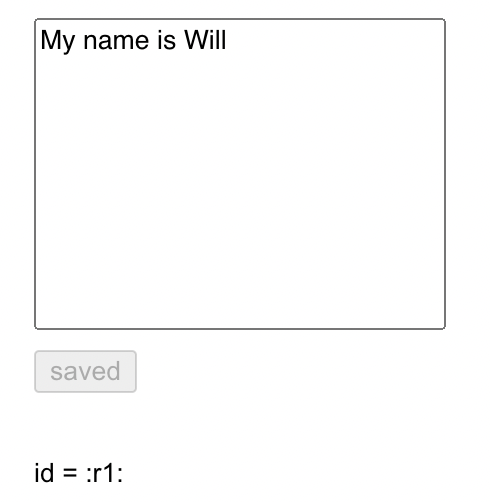
Using ref created by useRef, we can access and display the DOM node’s id (e.g., “:r1:”) directly from a parent component. This approach eliminates the need to wrap the child component in forwardRef to expose its DOM. It’s a much cleaner and simpler syntax.
Improved Error Reporting
In React 19, hydration errors are now displayed more clearly in the console, making debugging easier. Additionally, the latest release improves general error reporting by avoiding the rethrowing of errors. If your app relies on errors being rethrown, you may need to update your code to accommodate this change.
Embedding <title>, <link>,<meta> and <style></style>
React 19 introduces a convenient feature allowing you to embed tags like <title>, <link>, <meta>, and <style> directly within your components. React will automatically hoist these tags into the <head> section of the DOM:
1 <div className={"form-container"}>2 <h2>Edit Your Bio Example 5 (forms)</h2>3 <Example54 key={currentBio + "5"}5 currentBio={currentBio}6 setCurrentBio={setCurrentBio}7 ref={ref}8 />9 <title>Edit Your Bio!</title>10 <style>{` small { color: blue; } `}</style>11 <small>id = {id}</small>12 </div>
In this example, we use the new React 19 <style> and <title> tag support. Here’s the result:
- The document title is updated to “Edit Your Bio!”
- The inline styles defined in the <style> tag apply correctly (e.g., the small text appears in blue).
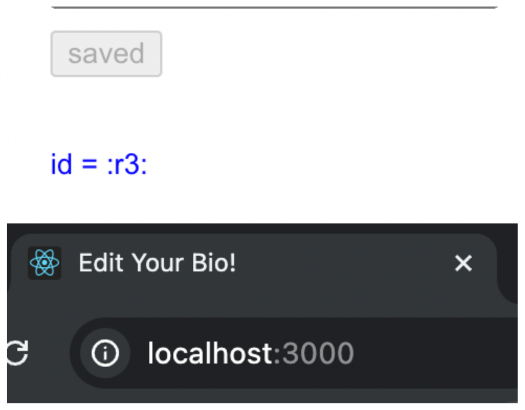
When inspecting the DOM through Chrome DevTools, we can observe the <style> tag hoisted into the <head>:
1<style> small { color: blue; } </style><small>id = :r3:</small>
However, the <title> tag displays an unexpected behavior: React renders two visible <title> tags within the <head>, as shown below:
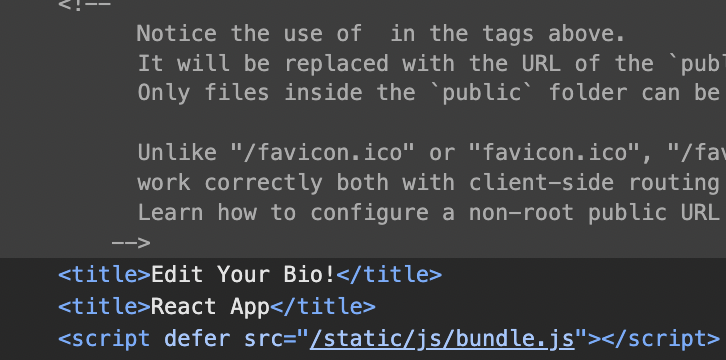
I’m not sure why React rendered two visible <title> tags in the <head>. Looking at the HTML specifications for the <title> tag, we find this:

Other Improvements: Support for Async Scripts, Preloading, and Custom Elements
Along with the improvements so far discussed, React 19 introduces several new features to enhance performance and compatibility.
Async Scripts
React 19 now supports asynchronous scripts, ensuring no duplication even when multiple component instances exist in the DOM. For instance:
1<script async={true} src="..." />
Support for Preloading
New React-DOM APIs allow you to preload specific resources, improving performance and load times. You can get the details here.
Support for Custom Elements
React 19 has enhanced compatibility with Custom Elements and now passes all tests on the Custom Elements Everywhere benchmark:

How to Upgrade to React 19
As of December 2024, the React team announced that v19 was stable. While the release was later than many developers expected, some bloggers speculated that the delay was due to unexpected behavior in the <Suspense> component.
1. Upgrade to React 18.3.1
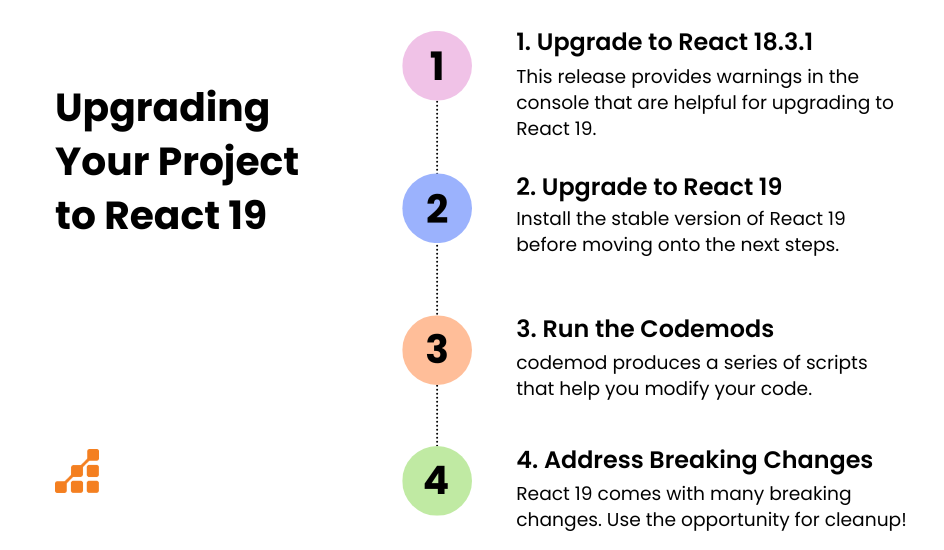
If you haven’t already, start by upgrading your project to React 18.3.1, the latest version in the React 18 series. While largely identical to 18.2, this release introduces console warnings specifically designed to help you prepare for the React 19 upgrade. The React team recommends upgrading to 18.3.1, building, and running your project to identify potential issues before transitioning to React 19.
2. Upgrade to React 19
Before proceeding, ensure that Node.js and your npm package are up-to-date. Then, install React 19 with the following command:
1npm install --save-exact react@^19.0.0 react-dom@^19.0.0
If your project was created with create-react-app (CRA), you might encounter issues requiring the use of the –legacy-peer-deps flag. Note that CRA is no longer actively maintained and has known vulnerabilities. If possible, consider transitioning to alternative tools like Vite, which has been reported to work smoothly with React 19.
3. Run the codemods
React has partnered with Codemod.com to provide scripts that automate many of the code changes required for React 19. Running these codemods can significantly reduce the effort needed to address breaking changes:
1npx codemod@latest react/19/migration-recipe
You can check out the codemod react repository here.
4. Address Breaking Changes
React 19 introduces numerous breaking changes, many of which stem from deprecated APIs dating back to 2018. To ensure a smooth transition, review the complete list of breaking changes here. The codemod scripts can help clean up your codebase and streamline the migration process, so be sure to take full advantage of them.
Final Thoughts: Getting Started with React 19
React 19 is a significant update, introducing powerful new features and concepts. While we’ve covered many highlights, we’ve only scratched the surface of what’s new. This release introduces exciting hooks and async support, building on the foundation of Actions as a conceptual framework. Key additions include:
- Enhancements to the async nature of effects, including updates to useTransition.
- New hooks like useOptimistic, useActionStatus, and useFormStatus for better handling of async logic in forms.
- The new use hook, which makes <Suspense> functionality easier to integrate.
We’ve also reviewed some basic improvements and tips to upgrade to React 19 with minimal friction.
While React 18 marked a significant leap in its internal architecture, React 19 stands out for its impactful new features. However, this is just the beginning—we haven’t yet explored React 19’s Server Components and Server Actions, which represent a major conceptual shift. These will be the focus of Part II in this article series.
Looking at React’s progression from 17 to 18 and now 19, the long-term vision becomes clearer. The React team appears to be moving toward server/client-agnostic code, enabling developers to write applications without relying on traditional server APIs or heavy client-side libraries. Over time, React may redefine what it means to be a full-stack developer, bridging the gap between server and client seamlessly.